How to Send Photos to Clients for Quick Selection with Google Drive
You shoot thousands of frames and send the client a Drive link. They open it, take screenshots, then message "third photo, second row" or "the one in the white shirt". You sit there guessing and typing filenames by hand to find the originals. This guide shows a much shorter way, free, with IMGSELECTOR.
Why the old way wastes time
- Clients must sign in to Drive, and older clients often struggle.
- Positions in a screenshot do not match filenames.
- You cannot tell how far over the package the client has gone.
- Editing notes end up scattered across messages.
Step 1: Prepare a folder on Google Drive
Upload the photos to a folder. Click Share, choose "Anyone with the link" and the Viewer role. The folder must be shared this way for IMGSELECTOR to read the photos. For a full walkthrough, see how to share a Drive folder with the right permissions.
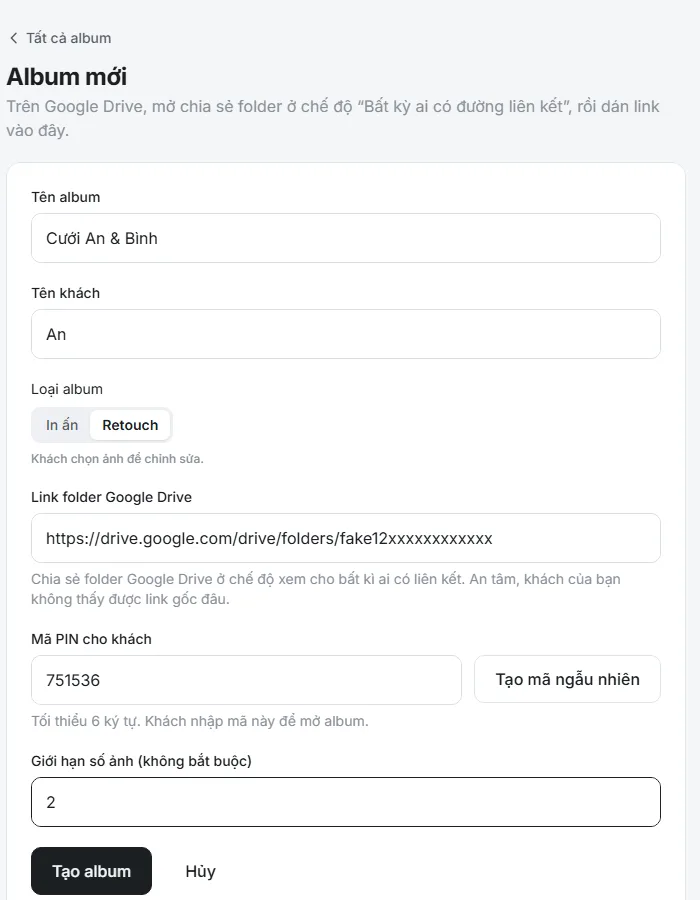
Step 2: Create an album
Sign up for free, create an album and paste the folder link. Set a PIN and the number of photos in the package. The system creates a private link for you. Clients never see the original Drive link, because they only see a preview (up to 1600px).
Step 3: Send the link and PIN to your client
Send both over Zalo, Messenger or any chat app. The client only needs the link and PIN, with no account. Albums of more than 4,000 photos stay smooth on a phone.
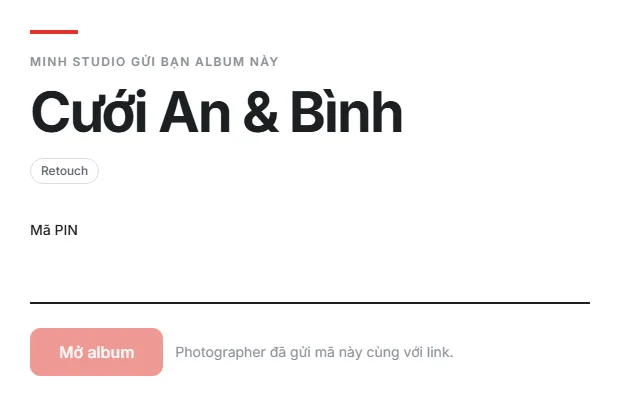
Step 4: The client circles their photos
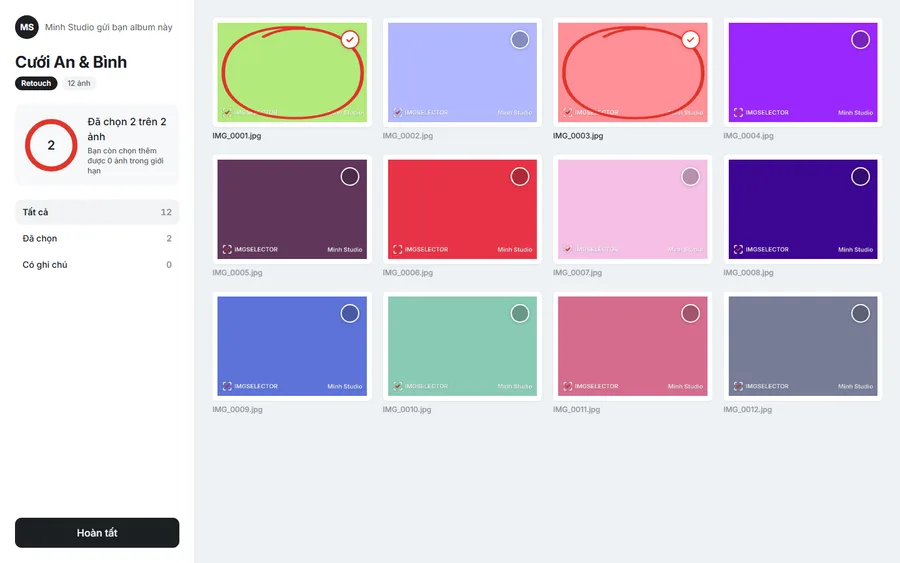
The client opens the link, enters the PIN and browses photos like a contact sheet. Tapping a photo circles it in red and shows the filename in bold. Clients can:
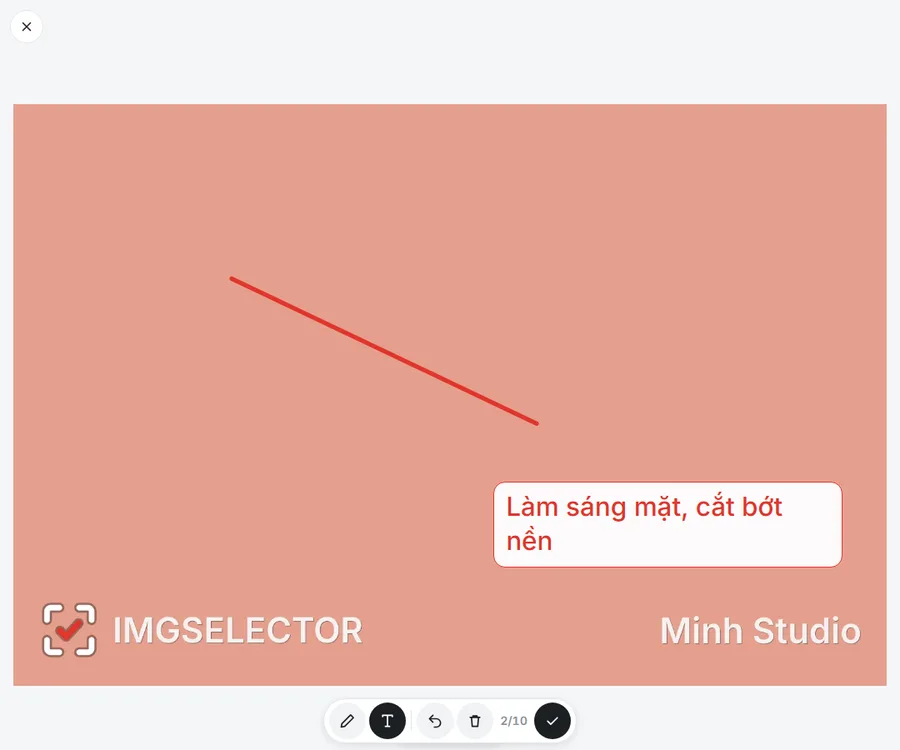
- add a note to each photo;
- draw or type directly on a photo that needs editing;
- track how many photos they have chosen against the package, with a warning when they go over.
Choices save automatically and are still there when reopened on another device. When finished, the client presses Done.
Step 5: Filter the exact originals on your computer
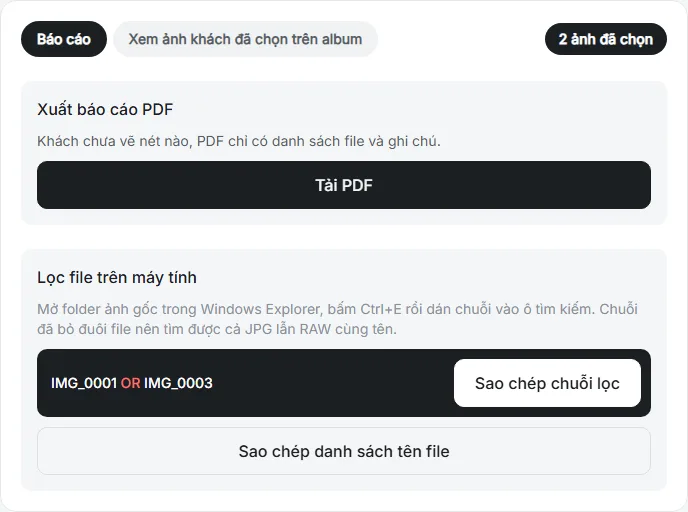
You receive a filter string such as IMG_0012 OR IMG_0045 OR IMG_0103. Open the original photo folder on your computer and paste the string into the Windows Explorer search box. Explorer shows the matching JPG and RAW files. Select them all and copy them to a new folder for retouching. More detail in how to filter original files by filename.
Step 6: Export a PDF report for your retoucher
Press Download PDF to get the list of chosen files, text notes and the photos with the client's drawings. Send the file to your retoucher so they do not have to reread chat messages.
Small tips
- If you add photos to the folder after creating the album, press Resync from Drive so the new ones appear.
- Do not delete or rename photos once the client has chosen: after a resync, deleted photos disappear from the album together with the client's choices.
- To let the client choose again or add more after pressing Done, press Reopen for client.
Frequently asked questions
Is IMGSELECTOR free?
Yes. Photographers can sign up and use IMGSELECTOR for free.
Are my photos uploaded to another server?
Your originals stay on your Drive. IMGSELECTOR only creates previews for clients to view.
Does the client need an account?
No. The client only needs the link and PIN you send.