Send a Wedding Photo Album for Client Selection: A Simple Workflow for Photographers
Wedding galleries often hold hundreds to thousands of frames, and the couple and their families all want a say. If everyone sends feedback in a different way, you lose an afternoon putting it together. This guide describes a workflow for sending a wedding album for client selection, with a package limit and clear editing notes.
Why weddings need their own workflow
- Large galleries make it easy for clients to get lost scrolling through Google Drive.
- Packages usually include a set number of retouched or printed frames, for example 60 or 100.
- Several people take part in the decision, but you need a single final list.
- Wedding retouching often involves detailed requests such as skin, backgrounds or removing bystanders.
Step 1: Prepare and upload to Drive
Do a first cull to remove closed eyes and duplicates, then upload the exported files to a Google Drive folder. Share the folder as "Anyone with the link" with the Viewer role. Keep the camera filenames so you can find the originals later.
Step 2: Create the album and set the package size
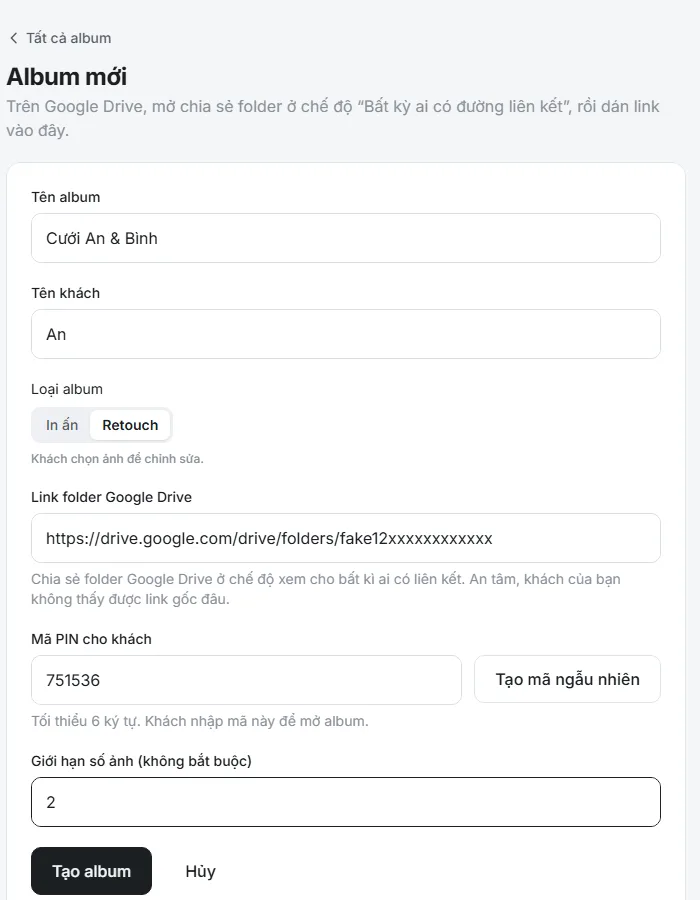
Sign up free, create a new album and paste the folder link. Set a PIN and the number of photos in the package you quoted. You can set the album type to Print when the client picks frames for a wedding album, or Retouch when they pick frames to be edited. When the client selects more than the package allows, a warning appears on their screen.
Step 3: Send one link to a main contact
Send the link and PIN to the bride or groom and ask them to review the photos with family on their phones. Choices are saved automatically and persist on other devices, so the couple can take turns. Agree beforehand who presses Done, because after submission the client cannot choose more unless you reopen the album.
Step 4: Clients circle photos and add notes
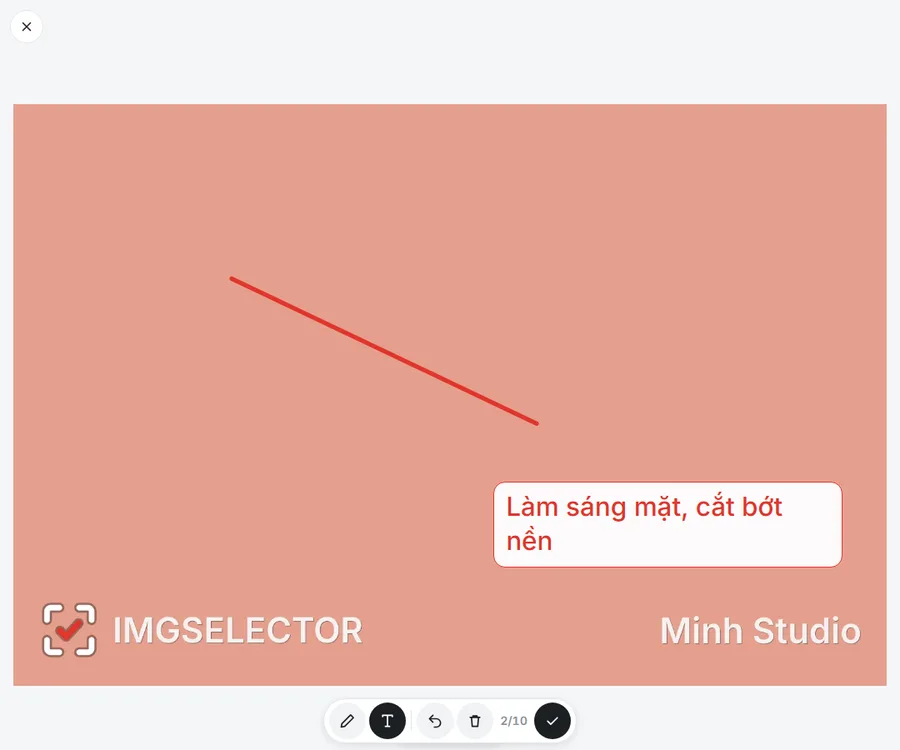
Each frame has a round button in the corner, and tapping it circles the photo in red. For frames that need editing, clients can type a note or draw directly on the image, for example circling a bystander to remove or pointing out where skin needs brightening.
Step 5: Filter originals and brief your retoucher
When the client submits, you get a filter string to paste into Windows Explorer, which shows the exact JPG and RAW files to process. Export the PDF report with the file list, text notes and annotated photos for your retoucher. For details, see how to filter original files by filename.
Tips for wedding albums
- Set the package limit slightly above your quote, and explain clearly how extra frames are charged.
- If you need another round after submission, press Reopen for client.
- Create separate albums for the ceremony, reception and portraits if you want clients to choose section by section.
Frequently asked questions
Does the couple's family need an account?
No. Anyone with the link and PIN can open the album without an account.
What if the client selects more than the package includes?
The system warns them when they go over. You still see the full selection and decide how to handle it.
Is IMGSELECTOR free?
Yes. Photographers can sign up and use IMGSELECTOR for free.